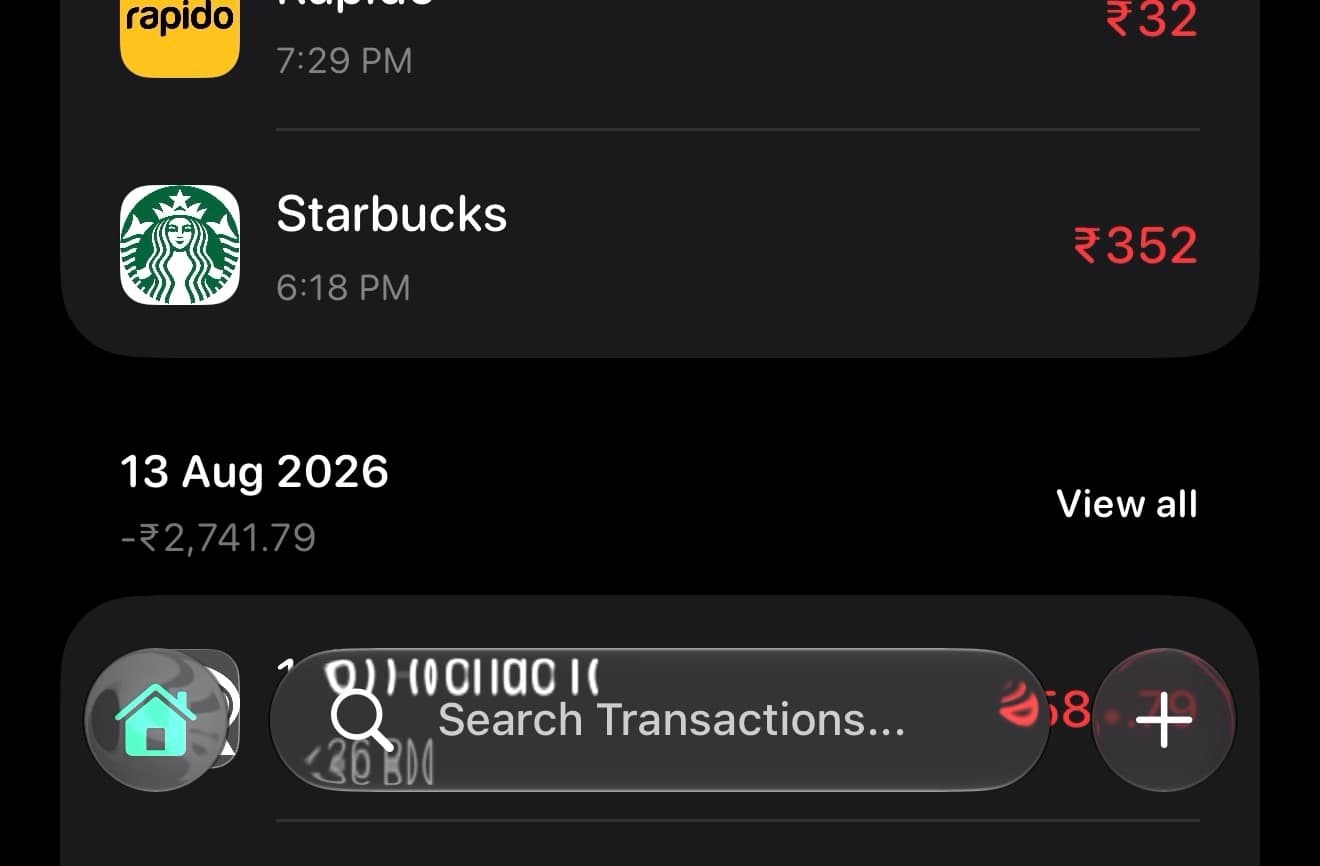
I recently added a small search control to the bottom of Windfall’s tab bar. It looks like a modest UI change: a glass capsule with a magnifying glass and the text “Search Transactions…”. Tapping it opens a global search screen.
The implementation is more interesting than the button.
Windfall has four real sections: Home, Budget, Analytics, and Settings. Transaction search is useful from all four, but it is not a section of the app. Making it a fifth tab would give search more navigational weight than it deserves. Keeping it in a toolbar meant it was only obvious from Home, and adding the same button to every screen would create a different kind of clutter.
The new tab bar APIs in iOS 26 gave me a better place for it: UITabAccessory.
Here is the post that started the conversation:
Post by @SwapnanilDhol
Search is not a tab
The useful distinction is between a destination and an action.
A tab is a destination. It belongs in the app’s primary information architecture and remains selected while the user explores that part of the product.
Search is an action that helps the user reach a destination. It should be available from the app’s main surface, but it does not need its own permanent place in the tab hierarchy.
That made the tab bar accessory a good fit. It lives with the tab bar, so it is available wherever the tab bar is available. It is outside the set of tabs, so it does not pretend that search is another area of Windfall. On iOS 26, UIKit can also adapt the tab bar’s presentation and provide the accessory with the environment it is currently using.
The API is deliberately small:
let accessory = UITabAccessory(contentView: searchButton)
tabBarController.setBottomAccessory(accessory, animated: false)
UITabAccessory is a container for a normal UIView. That last part is important. I did not need to build a custom tab bar or place a view over the tab bar with manually calculated constraints. Windfall supplies a UIKit button, and UITabBarController owns the placement and transition.
Apple documents the accessory as an optional bottom accessory of UITabBarController, with an animated setter for adding or removing it. The API documentation is short, but the design space is useful: the accessory is attached to the tab bar controller, not to one of the child view controllers.
The app coordinator owns it
Windfall’s tabs are navigation controllers managed by an app coordinator. That coordinator already owns tab selection and the shared transaction flows, so it is also the right place to install the accessory.
The setup is guarded by availability rather than requiring the entire app to move to iOS 26:
private var transactionSearchAccessoryStorage: AnyObject?

@available(iOS 26, *)
private func setTransactionSearchAccessoryVisible(
    _ isVisible: Bool,
    animated: Bool
) {
    switch isVisible {
    case true:
        guard tabBarController.bottomAccessory == nil else { return }

        let accessory: UITabAccessory
        if let storedAccessory = transactionSearchAccessoryStorage as? UITabAccessory {
            accessory = storedAccessory
        } else {
            let searchAccessoryView = TransactionSearchAccessoryView(delegate: self)
            accessory = UITabAccessory(contentView: searchAccessoryView)
            transactionSearchAccessoryStorage = accessory
        }

        tabBarController.setBottomAccessory(accessory, animated: animated)

    case false:
        guard tabBarController.bottomAccessory != nil else { return }
        tabBarController.setBottomAccessory(nil, animated: animated)
    }
}
There are two details here that are easy to miss.
First, I use setBottomAccessory(_:animated:) instead of assigning the bottomAccessory property when the visibility changes. The animated setter makes the accessory appear and disappear with the tab bar’s own transition.
Second, I keep the accessory around and reuse it. The search button is stateless at the moment, but this gives the accessory one lifetime and prevents the navigation callbacks from constructing a new view every time the user moves between screens.
The accessory itself is available only on iOS 26. The rest of the app still has a Home toolbar search button on earlier systems, and both entry points eventually call the same presentTransactionSearch() method. There is one search flow, not an iOS 26 search flow and an older search flow that will slowly drift apart.
A button, not a miniature search screen
The accessory’s content view is a UIButton subclass. That keeps the control’s interaction model familiar to UIKit and lets the system own the button’s glass treatment.
@available(iOS 26, *)
@MainActor
final class TransactionSearchAccessoryView: UIButton {
    private weak var searchDelegate: (any TransactionSearchAccessoryViewDelegate)?
    private var traitRegistration: (any UITraitChangeRegistration)?

    init(delegate: any TransactionSearchAccessoryViewDelegate) {
        searchDelegate = delegate
        super.init(frame: .zero)
        configure()
    }

    @available(*, unavailable)
    required init?(coder: NSCoder) {
        fatalError("init(coder:) has not been implemented")
    }

    private func configure() {
        addTarget(self, action: #selector(didActivate), for: .touchUpInside)
        contentHorizontalAlignment = .leading
        accessibilityLabel = "Search".localized
        accessibilityHint = "Search transactions...".localized
        accessibilityIdentifier = "floatingTransactionSearchButton"

        traitRegistration = registerForTraitChanges([UITraitTabAccessoryEnvironment.self]) {
            (view: TransactionSearchAccessoryView, _) in
            view.updateConfigurationForEnvironment()
        }

        updateConfigurationForEnvironment()
    }

    private func updateConfigurationForEnvironment() {
        var configuration = UIButton.Configuration.clearGlass()
        configuration.cornerStyle = .capsule
        configuration.image = UIImage(
            systemName: "magnifyingglass",
            withConfiguration: UIImage.SymbolConfiguration(
                pointSize: 17,
                weight: .medium
            )
        )
        configuration.imagePadding = 12
        configuration.baseForegroundColor = .label
        configuration.titleAlignment = .leading
        configuration.titleLineBreakMode = .byTruncatingTail
        configuration.title = "Search Transactions...".localized
        configuration.contentInsets = NSDirectionalEdgeInsets(
            top: 11,
            leading: 18,
            bottom: 11,
            trailing: 18
        )

        self.configuration = configuration
    }

    @objc private func didActivate() {
        searchDelegate?.transactionSearchAccessoryDidActivate()
    }
}
The UITraitTabAccessoryEnvironment registration is there because the accessory can be presented in more than one tab bar environment. I do not need a different visual design for those environments yet, but the control responds to a configuration change instead of assuming that the initial layout is permanent.
The button also has a real accessibility label, hint, and identifier. Search controls are often visually self-explanatory and semantically empty. That is not a good trade. VoiceOver should hear “Search” and what the action does, while UI tests should have a stable way to activate the same control.
I also keep the text localized. A placeholder that fits comfortably in English is not a fixed-width design contract, especially inside a tab bar accessory. The button uses a truncating title configuration, and the control remains left-aligned so the icon and the beginning of the label stay useful when space becomes tight.
The accessory follows navigation
The first version showed the search control everywhere the tab bar was visible. That included the search screen itself and pushed detail screens where the tab bar was hidden.
That was a small but important mismatch. If a view controller sets hidesBottomBarWhenPushed = true, the accessory should disappear with the tab bar. It should not float at the bottom of the screen as an unrelated control.
The app coordinator already observes each tab’s navigation controller, so the fix belongs at that boundary:
@available(iOS 26, *)
private func updateTransactionSearchAccessoryVisibility(
    for viewController: UIViewController,
    animated: Bool
) {
    setTransactionSearchAccessoryVisible(
        !viewController.hidesBottomBarWhenPushed,
        animated: animated
    )
}

func navigationController(
    _ navigationController: UINavigationController,
    willShow viewController: UIViewController,
    animated: Bool
) {
    guard tabNavigationControllers.contains(where: { $0 === navigationController }) else {
        return
    }

    if #available(iOS 26, *) {
        updateTransactionSearchAccessoryVisibility(
            for: viewController,
            animated: animated
        )
    }
}
I call the same update from didShow as well. willShow gives the accessory a chance to animate out with the transition. didShow reconciles the final state after the navigation controller has completed the transition. Calling the operation twice is safe because the setter exits when the requested state is already in place.
The search screen uses this route:
let controller = AppHostingController(rootView: TransactionSearchView(viewModel: viewModel))
controller.hidesBottomBarWhenPushed = true
homeNavigationController.pushViewController(controller, animated: true)
That single property now controls two pieces of UI: the tab bar and its accessory. I like this kind of relationship because it avoids a second concept such as isSearchAccessoryVisible being passed through every screen. The navigation controller already knows whether the tab bar belongs on screen.
The plus button is still an action
Windfall also has a prominent plus button at the end of the iOS 26 tab bar. It is not a destination either. It opens the app’s transaction-entry choices, or goes directly to budget entry when the Budget tab is active.
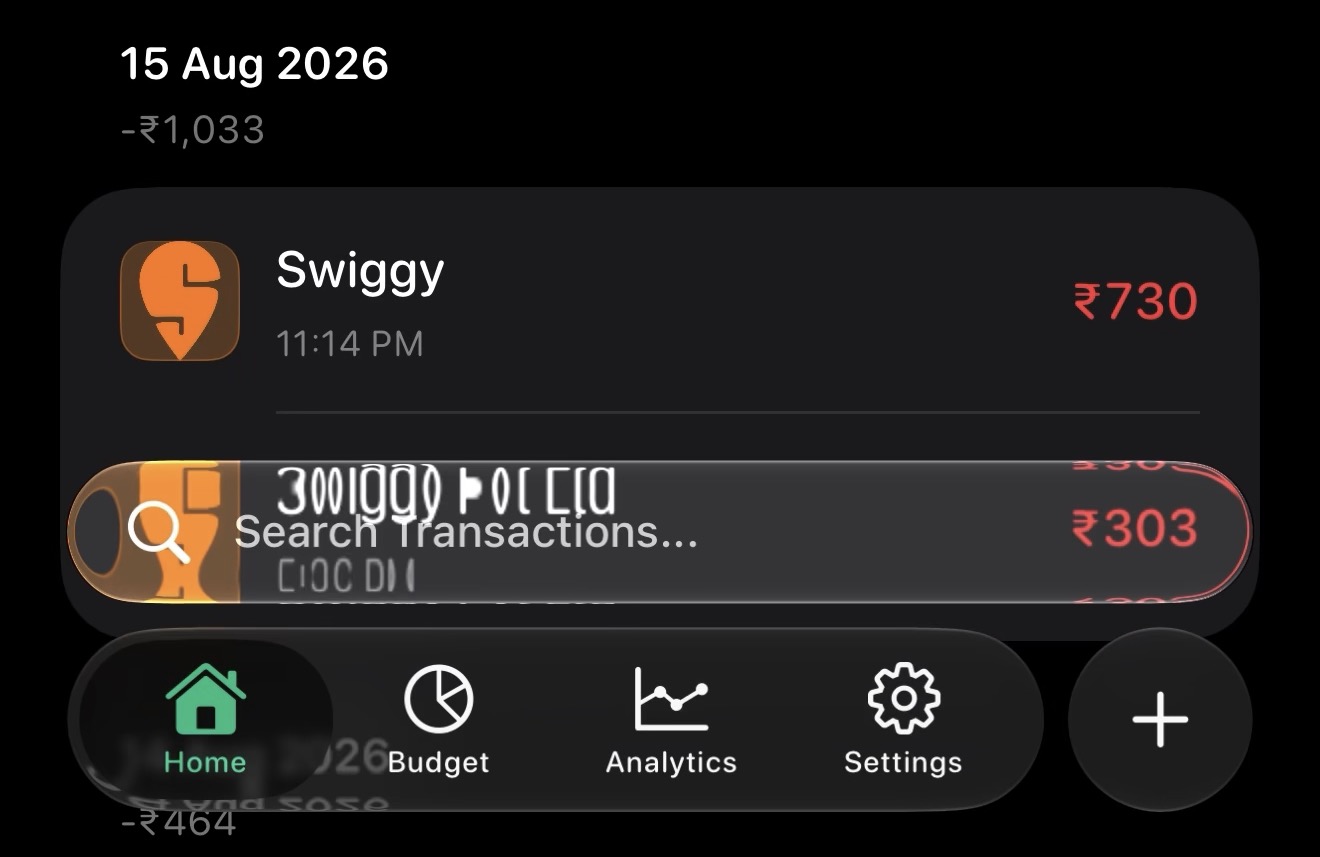
The accessory sits above the tab bar while the plus button remains a separate action.
I represent it with a placeholder view controller and intercept selection in UITabBarControllerDelegate:
func tabBarController(
    _ tabBarController: UITabBarController,
    shouldSelect viewController: UIViewController
) -> Bool {
    if viewController.tabBarItem.tag == Self.textEntryTabTag {
        performPrimaryActionFromTabBar()
        return false
    }

    return true
}
Returning false is the important part. The plus button can use the tab bar’s layout and interaction affordances without pretending that it owns a navigation stack. The tab bar remains a map of the app; the plus button remains an action.
That distinction also makes the two new controls easier to reason about:
tab bar
├── Home
├── Budget
├── Analytics
├── Settings
├── +  → perform a primary action
└── Search Transactions… → open a destination
Only the four named sections are tabs. Search and add-transaction are actions that happen to live next to them.
What I avoided
There were several tempting implementations that would have worked visually but made the feature worse.
I did not make search a fifth navigation tab. It would make the control permanent at the cost of making the information architecture less honest.
I did not add a custom view directly to UITabBar. The tab bar is a system-managed view, and the accessory API exists precisely so apps do not have to depend on its private subview layout.
I did not put the accessory in HomeView. Search is a global transaction operation, not a Home-only operation. The app coordinator owns the shared route and the tab bar controller owns the surface, so the ownership lines up.
I did not duplicate the search implementation for iOS 26. The older toolbar button calls the same coordinator method. The entry point changes; the feature does not.
And I did not manually reproduce the system’s glass appearance. UIButton.Configuration.clearGlass() gives the button a system-aware starting point, while the title, image, insets, and accessibility behavior remain ours to define.
The result
Windfall’s global transaction search is now one tap away from the app’s primary surface without becoming another section of the app. On iOS 26, the tab bar controller owns its placement and animation. When a pushed screen hides the tab bar, the accessory leaves with it. On older versions, the existing toolbar entry point continues to reach the same search flow.
The code is not large. The useful part was deciding where the feature belongs before writing the button.
UITabAccessory is a small API, but it supports a good relationship between navigation and utility: keep a global action close to the app’s primary navigation, without confusing the two.
Windfall is available on the App Store.